

RustDesk has earned a loyal following as a free, open-source remote desktop tool, but it isn’t the right fit for everyone. Some teams need enterprise-grade security certifications, dedicated customer support, or deeper integrations with existing IT helpdesk systems that RustDesk doesn’t fully offer. Others simply want a more polished interface or guaranteed uptime backed by a commercial vendor. Below, we break down 12 of the best RustDesk Alternatives available in 2026, covering their trials, official pricing, and the pros and cons that matter most when making a switch.
1. GoToMyPC
Pricing Plans:
Personal – ~$28–$35/computer/month
Pro – ~$31–$41/computer/month
Corporate – ~$21/computer/month (custom quote)
GoToMyPC is one of the oldest names in remote access software, built by GoTo primarily for individuals and small teams who need to reach their office computer from home. It offers browser-based access, remote printing, and cross-platform compatibility across Windows, macOS, and mobile devices, making it a dependable choice for everyday remote work rather than large-scale IT management.
While GoToMyPC delivers a stable, secure connection with encrypted sessions, its pricing sits on the higher end compared to newer competitors offering similar core functionality. It’s best suited for professionals who value simplicity and reliability over advanced administrative controls, though larger IT departments may find more cost-effective options elsewhere with comparable features.
Pros
- Simple, reliable browser-based access
- Remote printing built in
- Strong encryption and security
Cons
- Pricier than most competitors
- Lacks advanced IT management tools
- Per-computer pricing scales quickly
2. Zoho Assist
Pricing Plans:
Free – $0 (1 technician)
Standard – $10/technician/month
Professional – $15/technician/month
Enterprise – $24/technician/month
Zoho Assist is a cloud-based remote support and unattended access tool that fits naturally into businesses already using other Zoho products like Zoho Desk and Zoho CRM. It requires no installation for the person receiving support, supports file transfer up to 100GB, and includes features like remote printing, session recording, and multi-monitor support on higher tiers.
Its biggest strength is affordability paired with a genuinely usable free plan, making it attractive to freelancers and small IT teams. However, some essential features such as remote printing and session recording are locked behind the Standard plan, so budget-conscious buyers need to check tier limitations carefully before committing to the lowest-priced option.
Pros
- Generous free plan for solo technicians
- Integrates with the wider Zoho ecosystem
- Affordable mid-tier pricing
Cons
- Key features locked at higher tiers
- File transfers over 2GB can lag
- Interface feels dated compared to rivals
3. LogMeIn
Pricing Plans:
Individuals – $30/month (2 computers)
Power Users – $70/month (5 computers)
Small Business – $129/month (10 computers)
Resolve Standard – from $190/month (custom scaling)
LogMeIn, now operating under GoTo, is a well-established remote access brand offering both personal remote access (LogMeIn Pro) and IT management tools (LogMeIn Resolve, formerly GoTo Resolve). Every plan bundles in 1TB of cloud storage, LastPass Premium, remote printing, and multi-monitor display support, positioning it as a premium all-in-one package rather than a bare-bones tool.
The tradeoff for that bundled value is cost. LogMeIn is consistently flagged by reviewers as one of the pricier options in the category, and the rebranding across LogMeIn, GoTo, and GoTo Resolve has created confusion for buyers trying to compare plans. It works best for professionals who want reliability and don’t mind paying a premium for a polished experience.
Pros
- Bundles storage and password manager
- Rock-solid connection reliability
- Works well through firewalls without VPN setup
Cons
- Among the most expensive tools in this list
- Confusing product naming and branding
- No dedicated IT management in the Pro tier
4. Distant Desktop
Pricing Plans:
Free – $0 (limited features)
Professional (1 license) – $49.95/year
Bundle pricing – from $22.90/license (10+ licenses)
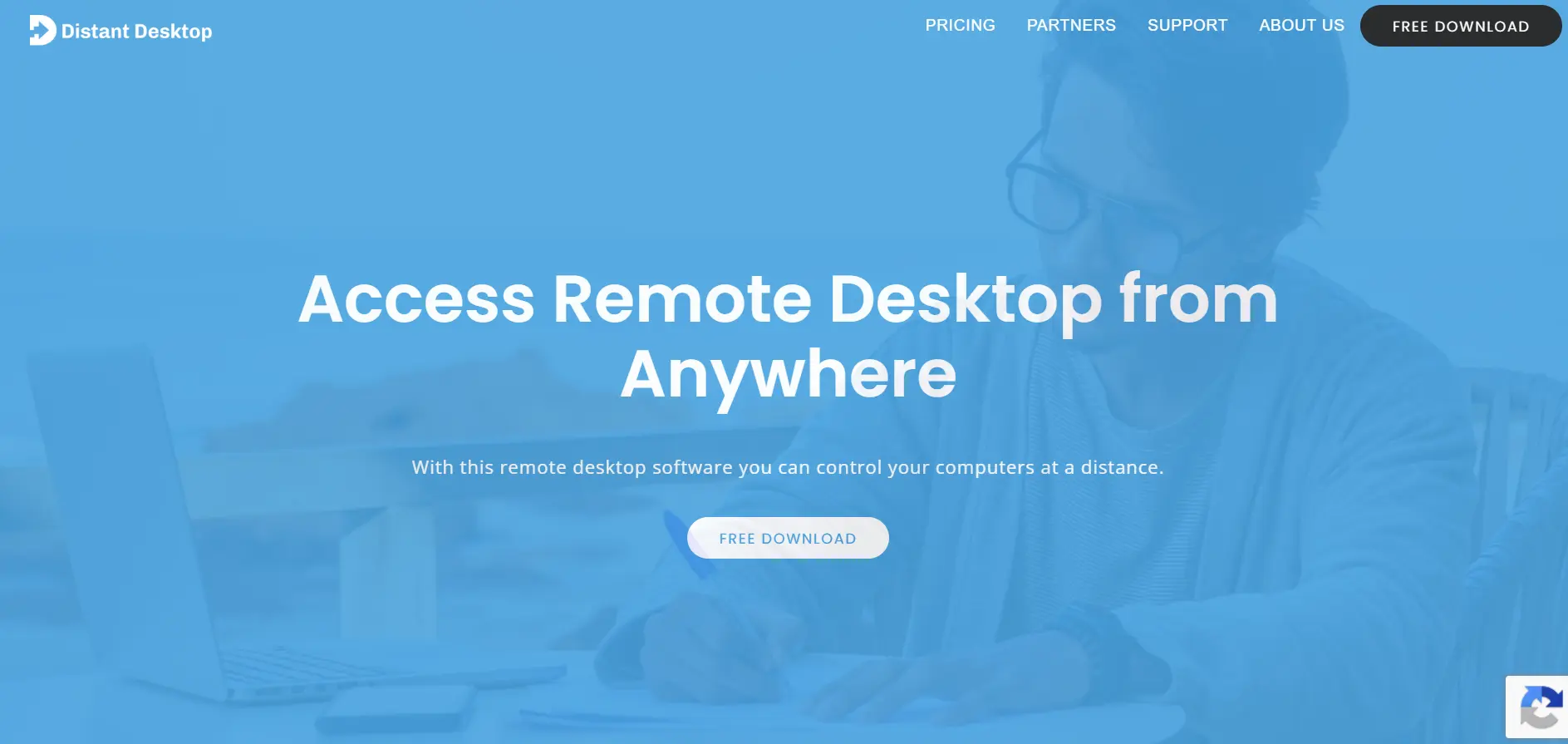
Distant Desktop is a lightweight, no-installation-required remote access tool aimed at freelancers, educators, and small businesses that need a quick and affordable way to connect to remote machines. It supports Windows, Mac, and Android, and includes file transfer, voice and text chat, and a view-only demo mode useful for online lessons or presentations.
Its biggest appeal is simplicity paired with fair, transparent pricing, especially for users who only need a handful of licenses. However, it lacks the depth of enterprise features, extensive documentation, and third-party integrations found in larger platforms, making it more suitable for individuals and small teams than IT departments managing large fleets of devices.
Pros
- Free for personal and commercial use
- Lightweight with no installation required
- Fair, transparent per-license pricing
Cons
- Limited support documentation
- Fewer advanced enterprise features
- Smaller user base and community support
5. Chrome Remote Desktop
Pricing Plans:
Free Forever – $0 (no premium tiers)
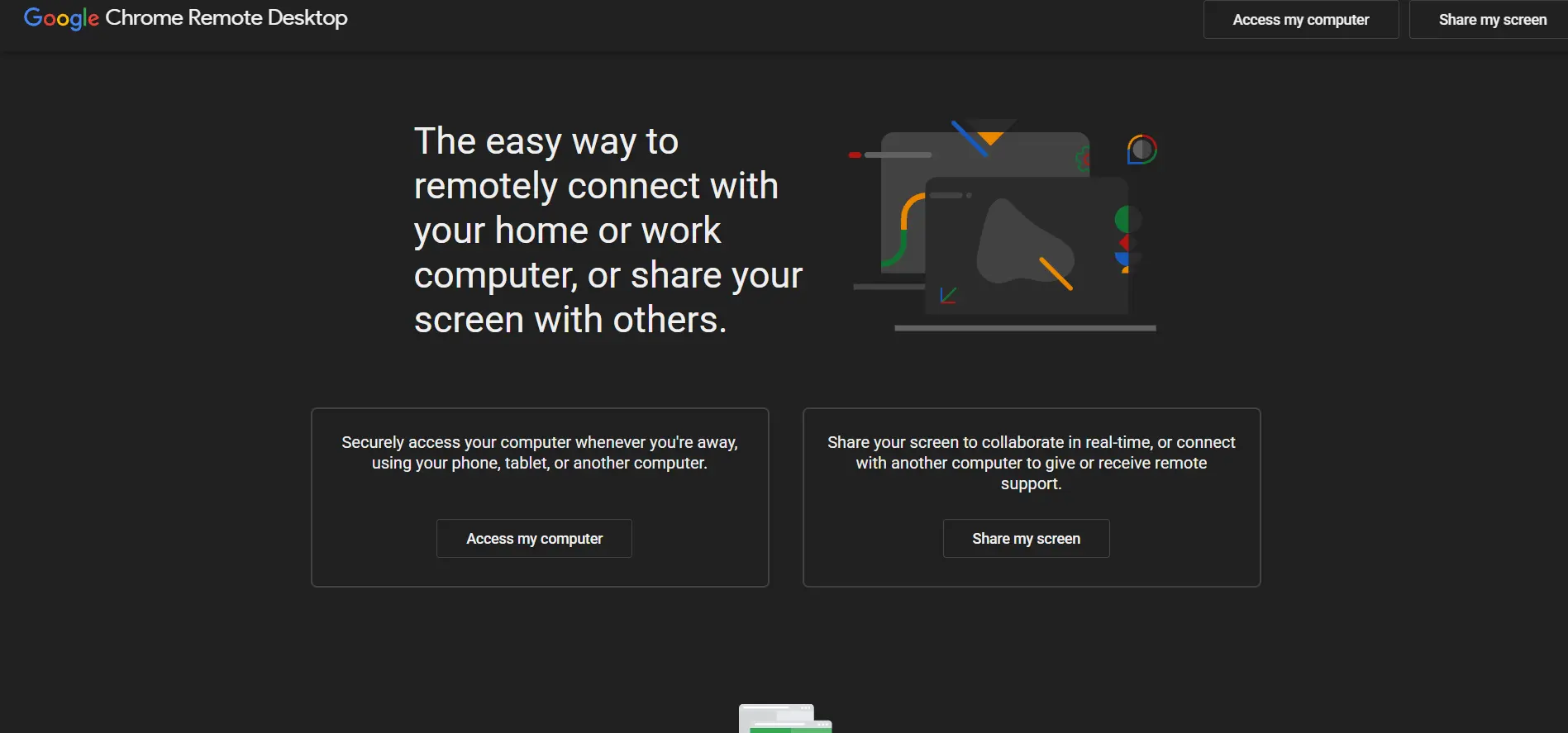
Chrome Remote Desktop is Google’s free, browser-based remote access extension that requires nothing more than a Google account and the Chrome browser to set up. It’s popular among casual users, families helping relatives with tech issues, and small businesses that need basic remote access without paying for a subscription.
Its simplicity is both its greatest strength and its biggest limitation. There’s no built-in chat, no session recording, no enterprise management console, and no dedicated support beyond community forums. For anyone needing more than occasional one-to-one remote access, Chrome Remote Desktop quickly runs out of features compared to paid alternatives.
Pros
- Completely free with zero cost
- No installation beyond a Chrome extension
- Extremely easy for non-technical users
Cons
- No built-in chat or file transfer polish
- No enterprise management features
- Heavily dependent on Chrome browser
6. ConnectWise ScreenConnect
Pricing Plans:
One – $30/technician/month
Standard – $45/technician/month
Premium – $55/technician/month
Unattended Access – from ~$30/month (25 devices)
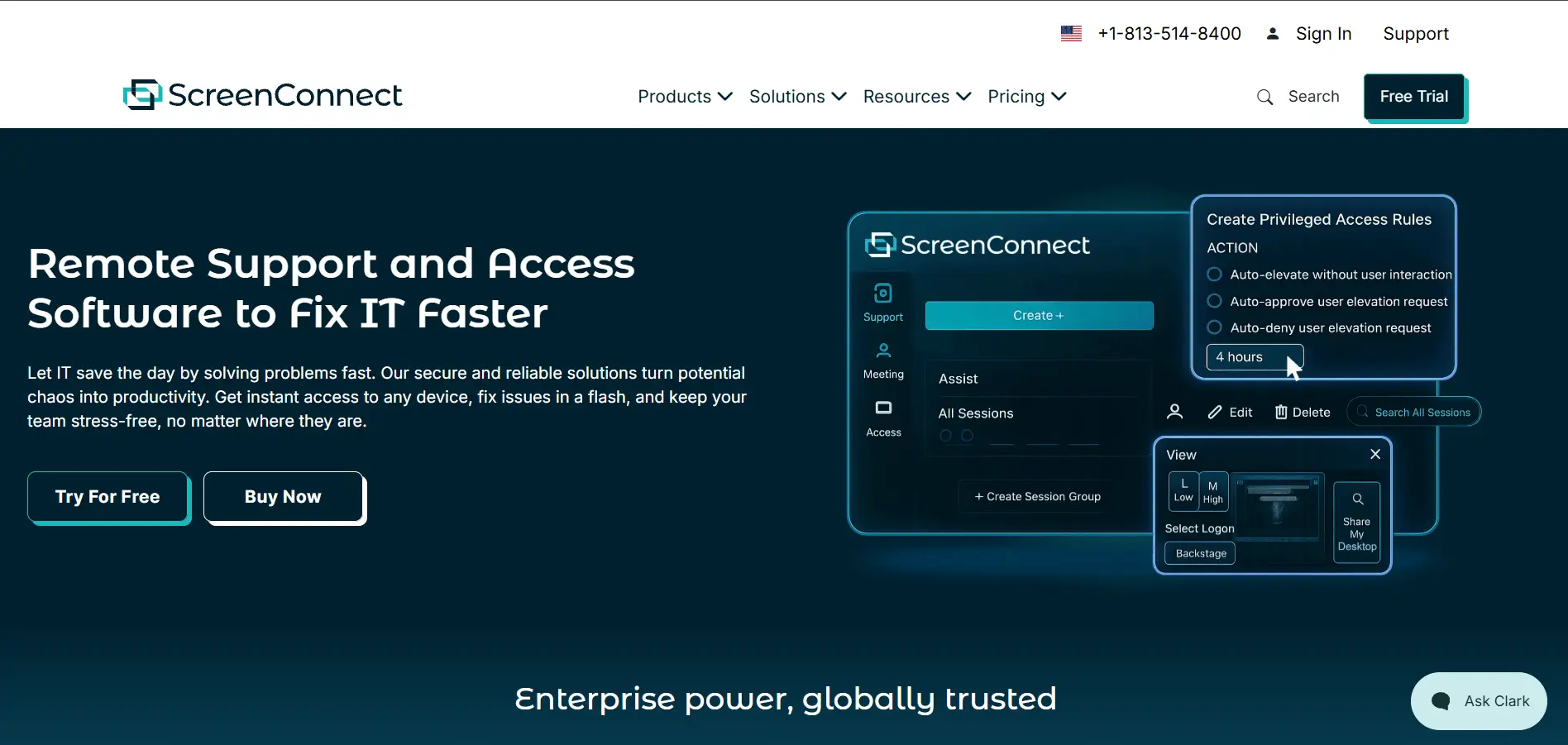
ConnectWise ScreenConnect, formerly known as ConnectWise Control, is purpose-built for IT support professionals and managed service providers rather than casual users. It offers a self-hosted deployment option for full data control, extensive white-labeling, backstage mode for background commands, and deep integration with the wider ConnectWise ecosystem of MSP tools.
Its per-concurrent-technician pricing model can be cost-efficient for teams sharing licenses, but Unattended Access is billed separately by device, which often surprises buyers evaluating only the headline support plan price. It’s a strong choice for MSPs already using ConnectWise tools but overkill for individuals wanting simple personal remote access.
Pros
- Full self-hosted deployment option
- Deep white-labeling and branding control
- Strong fit for MSPs and IT support teams
Cons
- Unattended access billed separately
- Not ideal for simple personal remote access
- Pricing has increased steadily year over year
7. RemotePC
Pricing Plans:
Consumer – $29.50/year (2 computers)
SOHO – $99.50/year (10 computers)
Team – $299.50/year (50 computers)
Enterprise – $599.50/year (100 computers)
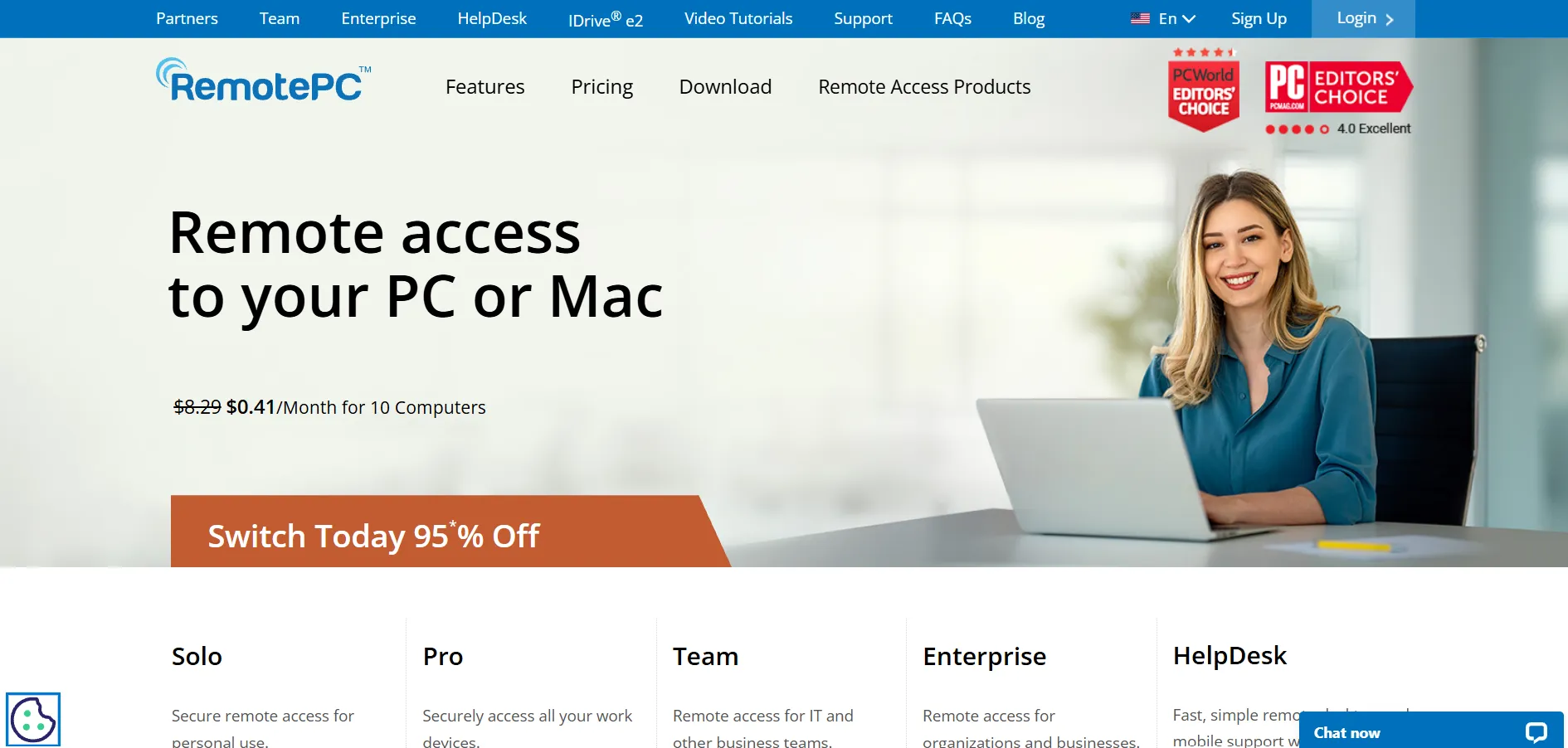
RemotePC, developed by IDrive, is known for offering one of the most budget-friendly annual pricing structures in the remote access market. It supports unattended access, remote printing, file transfer, session recording, and two-factor authentication, all delivered through a straightforward web-based interface that’s easy to set up without technical expertise.
The value proposition is strong, especially for small teams comparing it against pricier per-month competitors like TeamViewer or GoToMyPC. That said, RemotePC has fewer third-party integrations than enterprise-focused platforms, and its lower-priced tiers cap the number of users and computers, which can limit scalability for fast-growing organizations.
Pros
- Very competitive annual pricing
- Includes two-factor authentication
- Easy setup with minimal IT skill needed
Cons
- Fewer third-party integrations
- Consumer plan is annual-only
- Windows-only performance viewer app
8. BeyondTrust Remote Support
Pricing Plans:
Custom Quote – Concurrent-license based (contact sales)
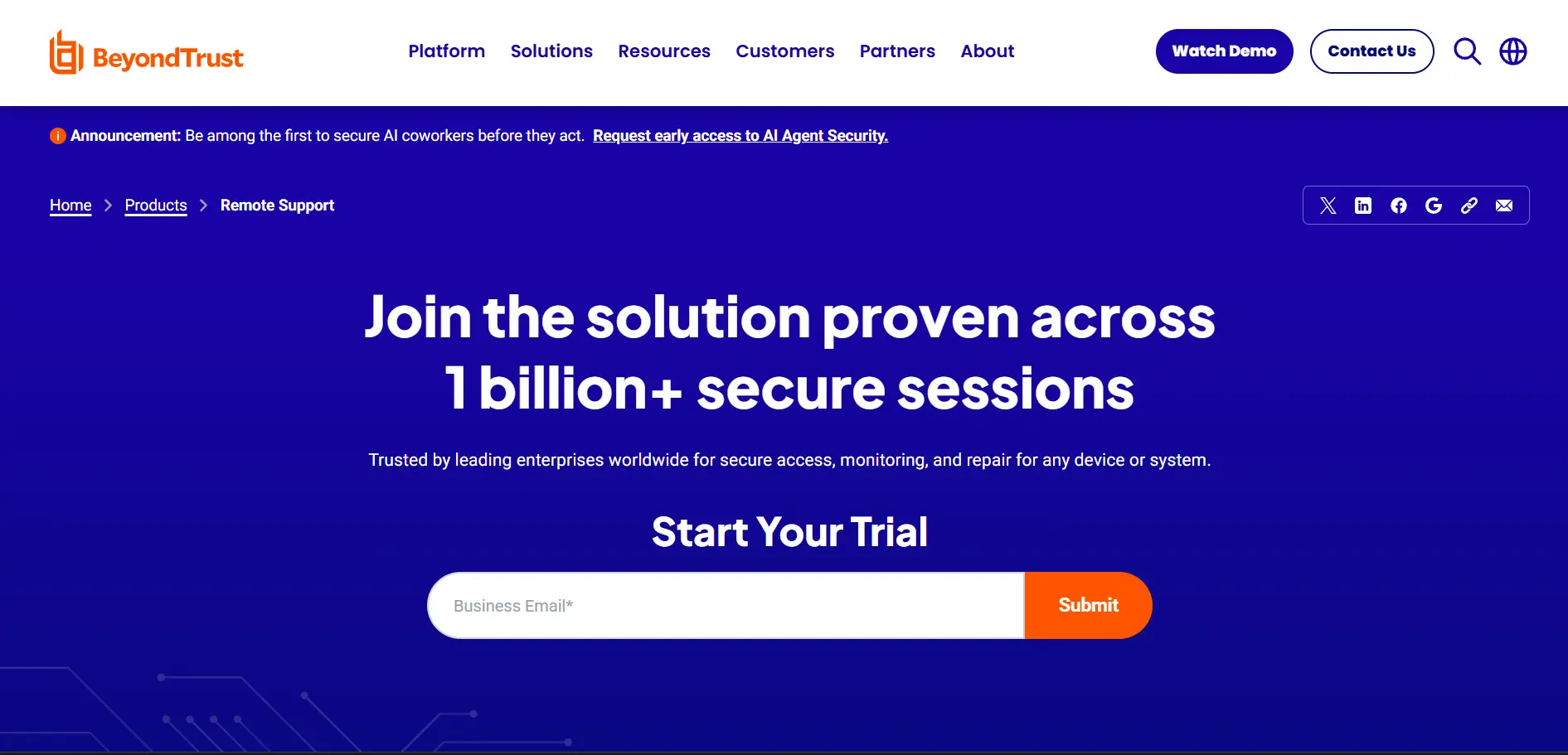
BeyondTrust Remote Support, formerly known as Bomgar, is an enterprise-grade remote support solution focused heavily on security, session auditing, and privileged access management. It’s designed for large IT departments and regulated industries that need to log and audit every remote action performed on a system, along with robust cross-platform support for Windows, Mac, Android, and iOS devices.
Because BeyondTrust doesn’t publish transparent pricing, businesses must contact sales for a custom quote, which typically reflects its positioning as a premium, security-first product. Reviewers consistently praise its reliability and concurrent licensing flexibility, but many also note the high upfront cost puts it out of reach for smaller teams with limited budgets.
Pros
- Enterprise-grade security and auditing
- Flexible concurrent licensing model
- Strong cross-platform device support
Cons
- No public pricing; requires custom quote
- High cost, not ideal for small businesses
- Steeper learning curve during setup
9. HelpWire
Pricing Plans:
Free – $0 forever (paid tiers expected Q3–Q4 2026)
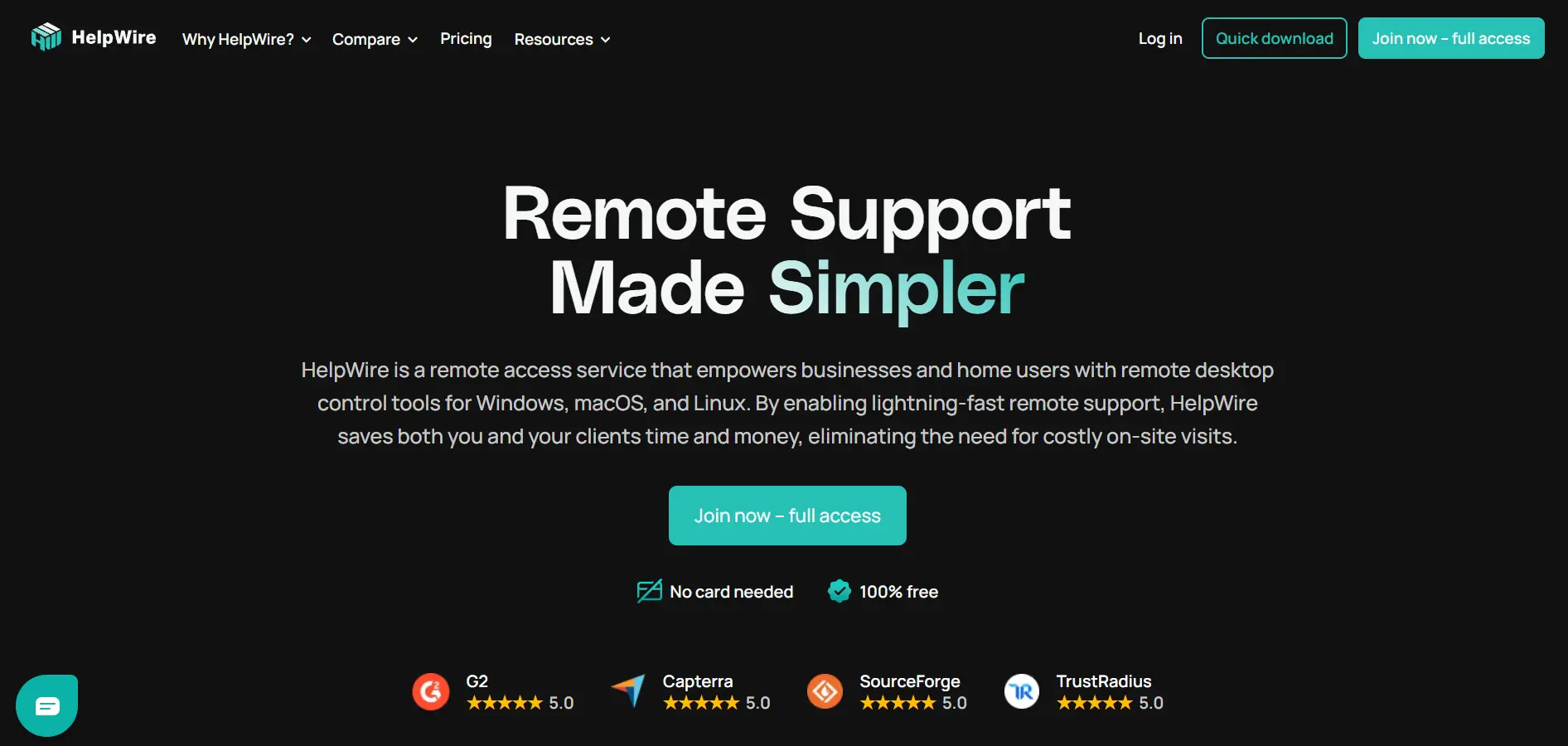
HelpWire is a newer remote access tool built for IT teams and technicians who need to support Windows, macOS, and Linux devices without asking end users to create an account or enter credentials. Sessions start through a simple shareable link, and the tool includes file transfer, unattended access, and multi-monitor support, all currently free of charge with no ads.
Because HelpWire is still in its early access phase, its complete feature set is available at no cost, making it attractive to freelancers and small support teams watching their budget. The tradeoff is a more limited feature set for larger businesses, no mobile app support yet, and the uncertainty of how pricing will look once paid plans officially launch later in 2026.
Pros
- Completely free during early access
- No account needed for the remote user
- Fast, lightweight, and reliable connections
Cons
- Paid plans coming, pricing not yet finalized
- No mobile device support currently
- Lacks integrations with helpdesk tools
10. Apache Guacamole
Pricing Plans:
Open Source – $0 (self-hosted, optional paid support)
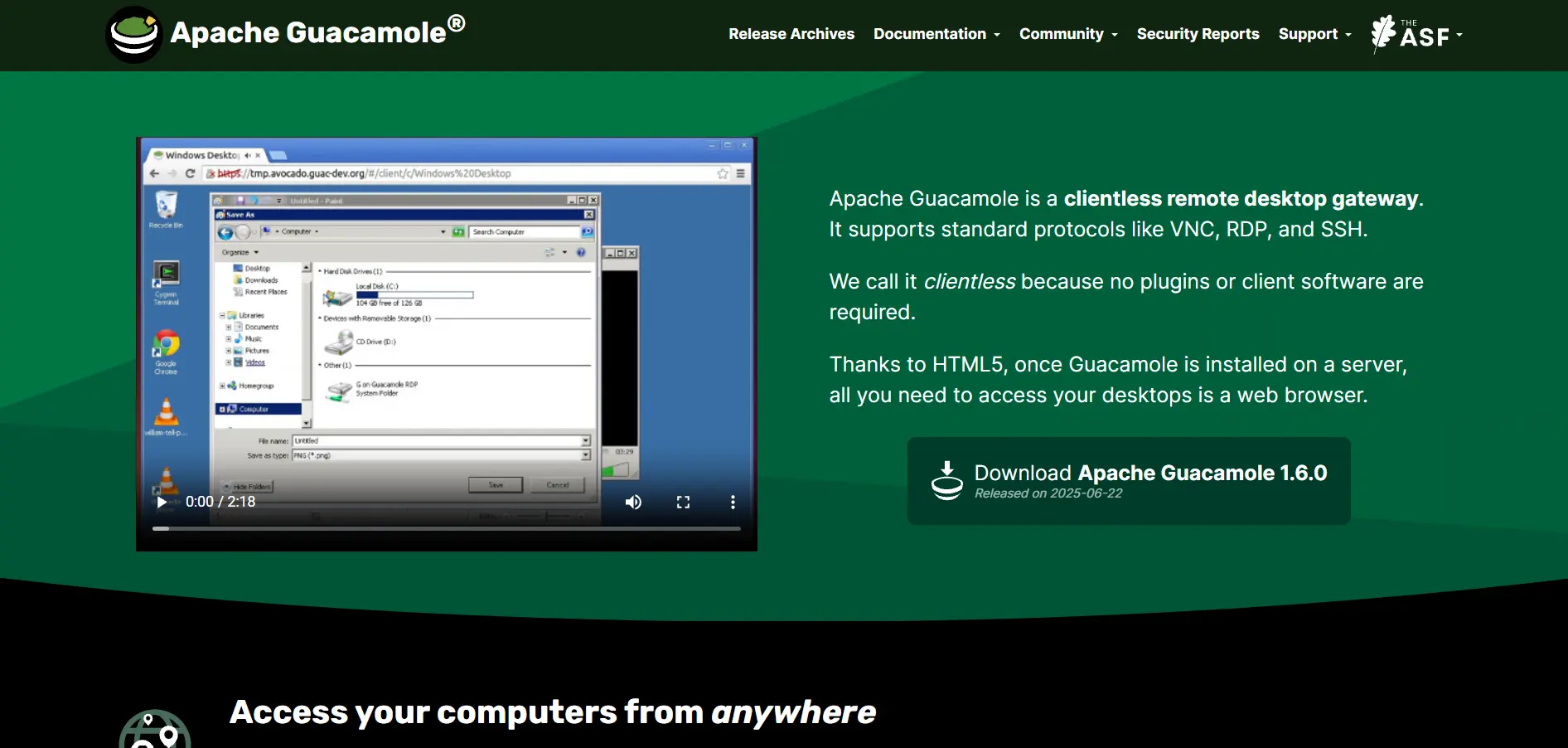
Apache Guacamole is a clientless, open-source remote desktop gateway maintained by the Apache Software Foundation. It allows users to access desktops and applications through nothing more than a web browser, using standard protocols like VNC, RDP, and SSH, which makes it a popular choice for organizations that want full control over their infrastructure without vendor lock-in.
Because it’s entirely free under the Apache License, the only real cost is the server infrastructure needed to self-host it, plus the technical effort required for setup and maintenance. It’s an excellent fit for developers and IT teams comfortable with configuration, but it lacks the polished GUI customization, session recording, and dedicated customer support that commercial alternatives typically provide.
Pros
- Completely free and open source forever
- No client software needed, works in browser
- Full control with no vendor lock-in
Cons
- Requires technical setup and self-hosting
- No official customer support team
- Limited documentation for GUI customization
11. TeamViewer
Pricing Plans:
Remote Access – $24.90/month
Business – $50.90/month
Premium – $112.90/month
Corporate – $229.90/month
Tensor (Enterprise) – Custom quote
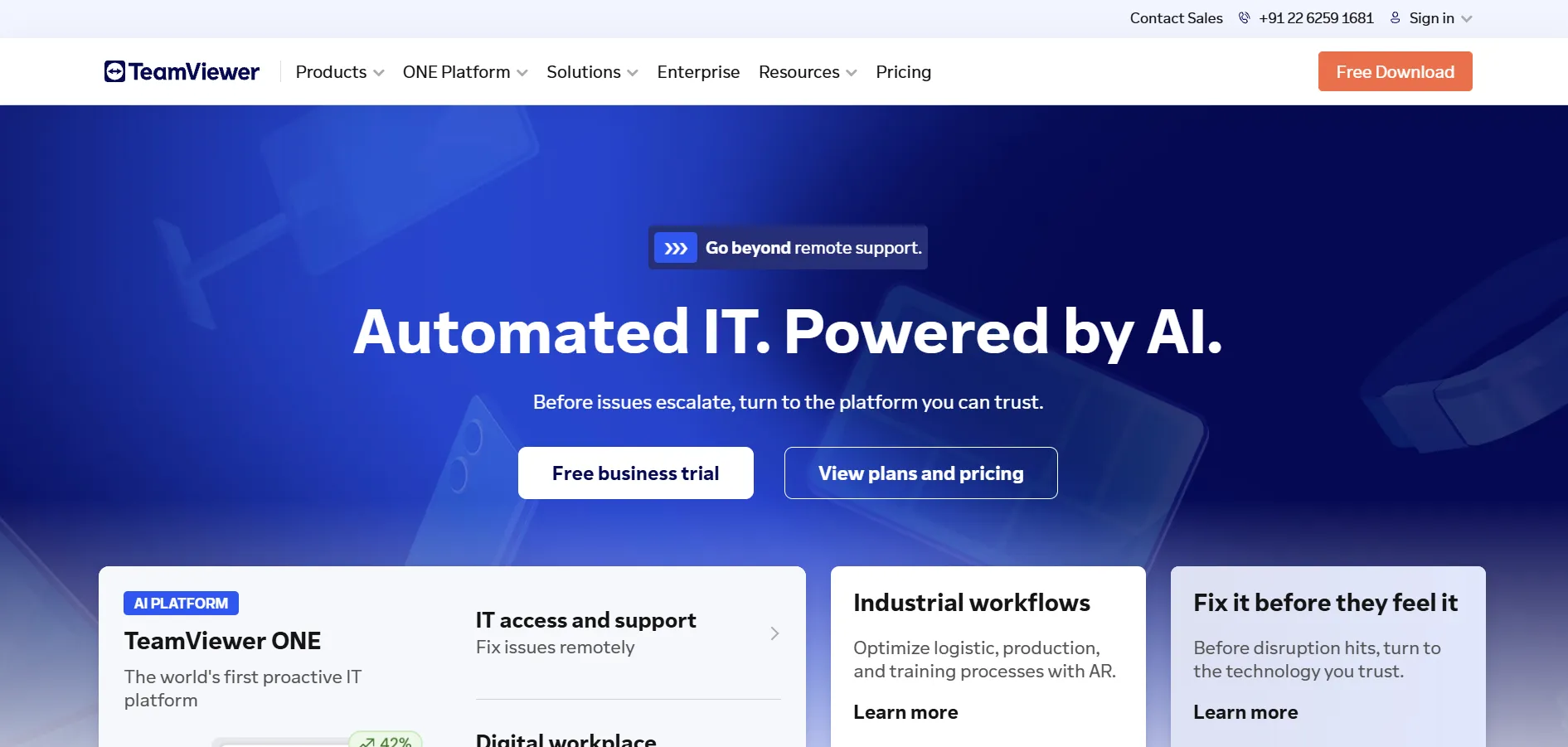
TeamViewer is one of the most recognized names in remote desktop software, offering everything from simple one-off remote sessions to enterprise-scale device management through its Tensor product line. Plans scale by licensed users, concurrent connections, and managed devices, with higher tiers unlocking video conferencing, VPN access, and broader software integrations.
Its biggest advantage is brand trust and feature depth, but that comes at a real cost: annual subscriptions, add-on pricing for extras like mobile support, and aggressive detection of commercial use on the free plan frequently push casual users toward a paid tier faster than expected. It remains a strong pick for larger organizations needing robust, well-documented remote access at scale.
Pros
- Trusted brand with strong reliability
- Scales from solo users to enterprise
- Wide range of third-party integrations
Cons
- Expensive at higher tiers
- Free plan aggressively blocks commercial use
- Add-ons increase total cost quickly
12. AnyDesk
Pricing Plans:
Solo – $14.90/month
Standard – $29.90–$49.90/month
Advanced – $59.90–$111.90/month
Ultimate – Custom quote
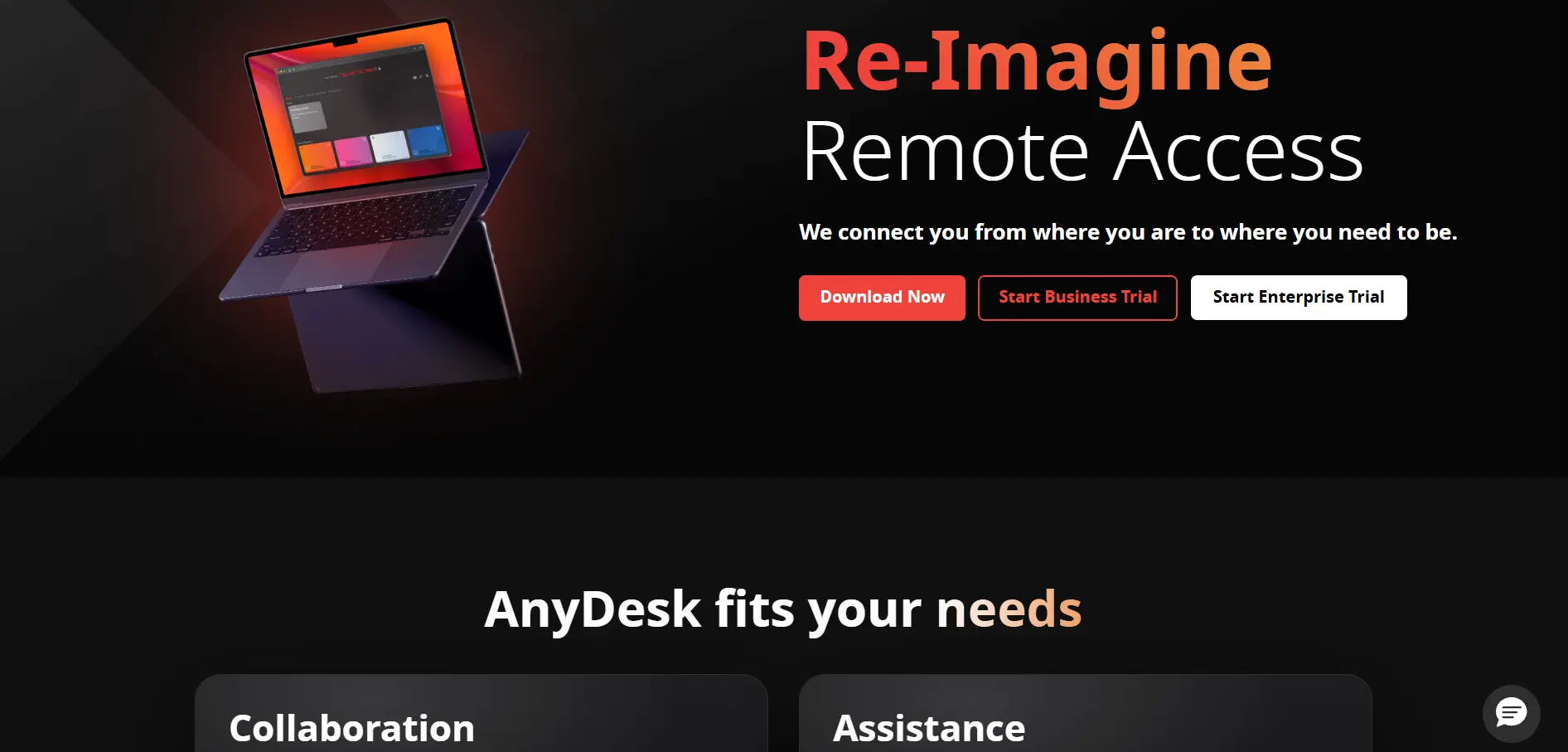
AnyDesk is widely positioned as the more budget-friendly, performance-focused alternative to TeamViewer, built around its proprietary DeskRT codec designed to minimize latency even on slower connections. It’s SOC 2 and ISO 27001 certified, supports MSI deployment and Active Directory integration on higher tiers, and offers custom-branded clients for teams that want a white-labeled experience.
While its entry-level Solo plan is competitively priced for freelancers, AnyDesk requires mandatory annual billing with no monthly option, and per-session overages can catch high-volume users off guard. It’s a solid choice for IT professionals who prioritize speed and security certifications over the most feature-rich enterprise dashboard on the market.
Pros
- Low-latency DeskRT codec technology
- SOC 2 and ISO 27001 certified security
- Competitive entry-level Solo pricing
Cons
- Annual billing only, no monthly plans
- Per-session overage fees on lower tiers
- Pricing has risen sharply in recent years
| Alternative | Description |
|---|---|
| GoToMyPC | A premium, browser-based remote access tool from GoTo built for individuals and small teams needing reliable everyday access to office computers. |
| Zoho Assist | An affordable cloud-based remote support platform with a strong free tier, ideal for teams already using the Zoho ecosystem. |
| LogMeIn | A premium all-in-one remote access suite bundling storage and password management, best for users who value reliability over cost savings. |
| Distant Desktop | A lightweight, no-install remote access tool with fair licensing pricing, well-suited for freelancers and small businesses. |
| Chrome Remote Desktop | Google’s completely free, browser-based remote access extension, perfect for casual and personal use. |
| ConnectWise ScreenConnect | A powerful, self-hostable remote support tool purpose-built for MSPs and IT support professionals. |
| RemotePC | A budget-friendly annual-pricing remote access tool from IDrive, popular among small businesses and teams. |
| BeyondTrust Remote Support | An enterprise-grade, security-first remote support platform with custom pricing for large regulated organizations. |
| HelpWire | A newer, currently free remote support tool designed for IT technicians supporting Windows, macOS, and Linux devices. |
| Apache Guacamole | A fully open-source, clientless remote desktop gateway that runs entirely in the browser with no licensing cost. |
| TeamViewer | A globally recognized remote access brand offering everything from personal use to enterprise device management. |
| AnyDesk | A performance-focused remote desktop tool known for its low-latency codec and strong security certifications. |
Conclusion
Choosing the right RustDesk alternative ultimately comes down to your specific needs and budget. Free and open-source tools like Chrome Remote Desktop, Apache Guacamole, and HelpWire are excellent for individuals or small teams who want zero-cost solutions without sacrificing core functionality. For freelancers and small businesses willing to pay a modest fee, options like RemotePC, Distant Desktop, and Zoho Assist strike a strong balance between affordability and features.
On the other end of the spectrum, businesses managing larger IT environments or requiring strict compliance and auditing will likely find more value in enterprise-focused platforms like BeyondTrust Remote Support, ConnectWise ScreenConnect, TeamViewer, or AnyDesk, despite their higher price tags. Whichever direction you choose, taking advantage of the free trials listed above is the best way to test real-world performance before committing to a long-term subscription.


